 CleverHeap
 Vladimir Marinkovic
Introduction
The previous post covered the boat’s movement and steering control together with Main Camera position change in real time. In this chapter, we’ll introduce game objects’ collision handling. We’ll explain how to use collision boxes and rigid bodies to prevent objects to overlap. Instead, the objects will bounce off the box’s boundaries when they are brought close to each other. We’ll also use collision approach to detect when the boat approaches the fish objects and use it to create a new behavior script for catching fish.
Collisions
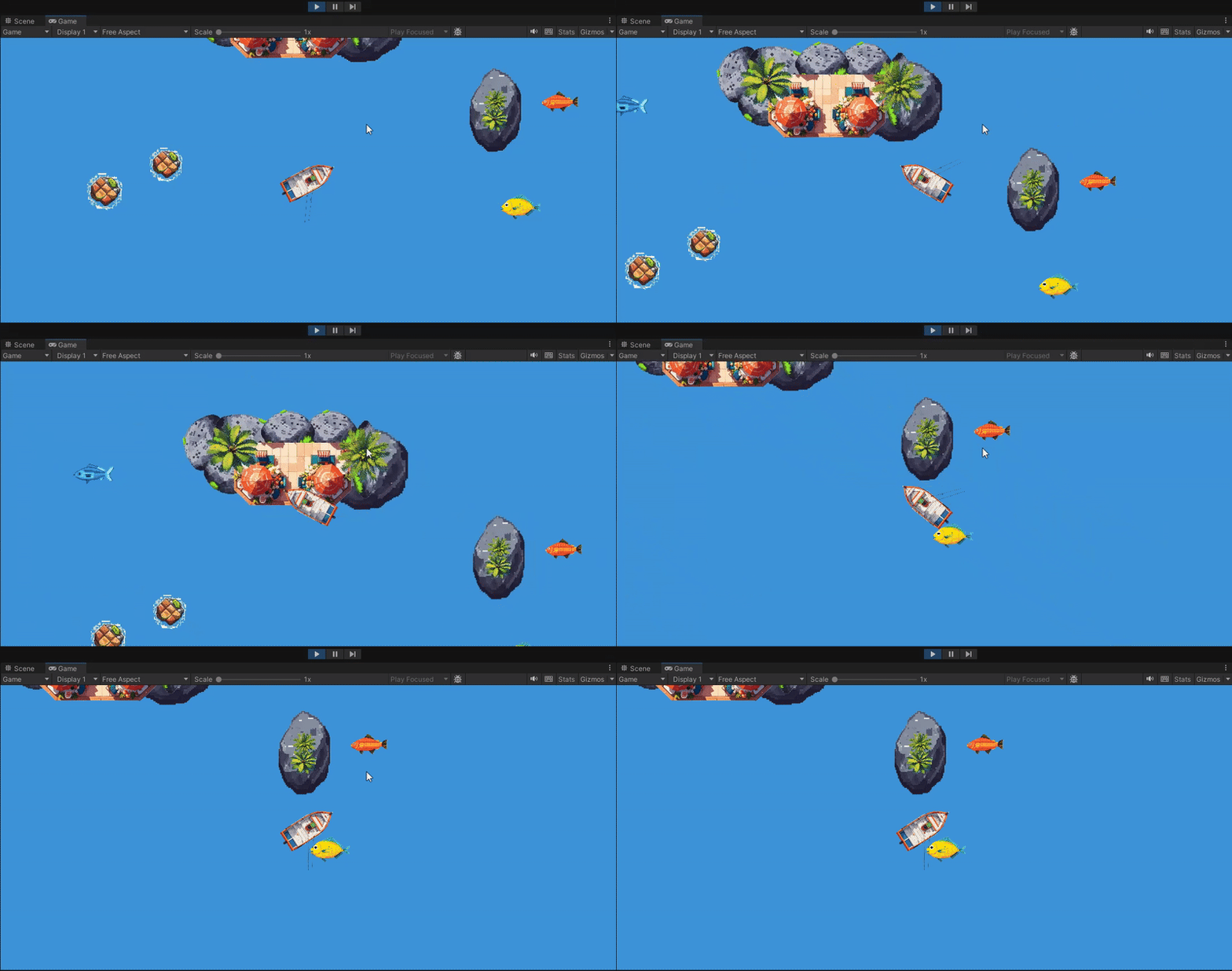
As you can see in the image above, our fishing boat, at this stage of implementation, overlaps the surrounding environment objects. The way to achieve boundaries on those objects is by adding collision box to each object or group of objects. To do that select the game object in Scene editor and in properties panel go to Add Component. Search the component list for collider and you will see several collider shapes. In the following case, I selected a circular shaped island so my choice is Circle Collider 2D.
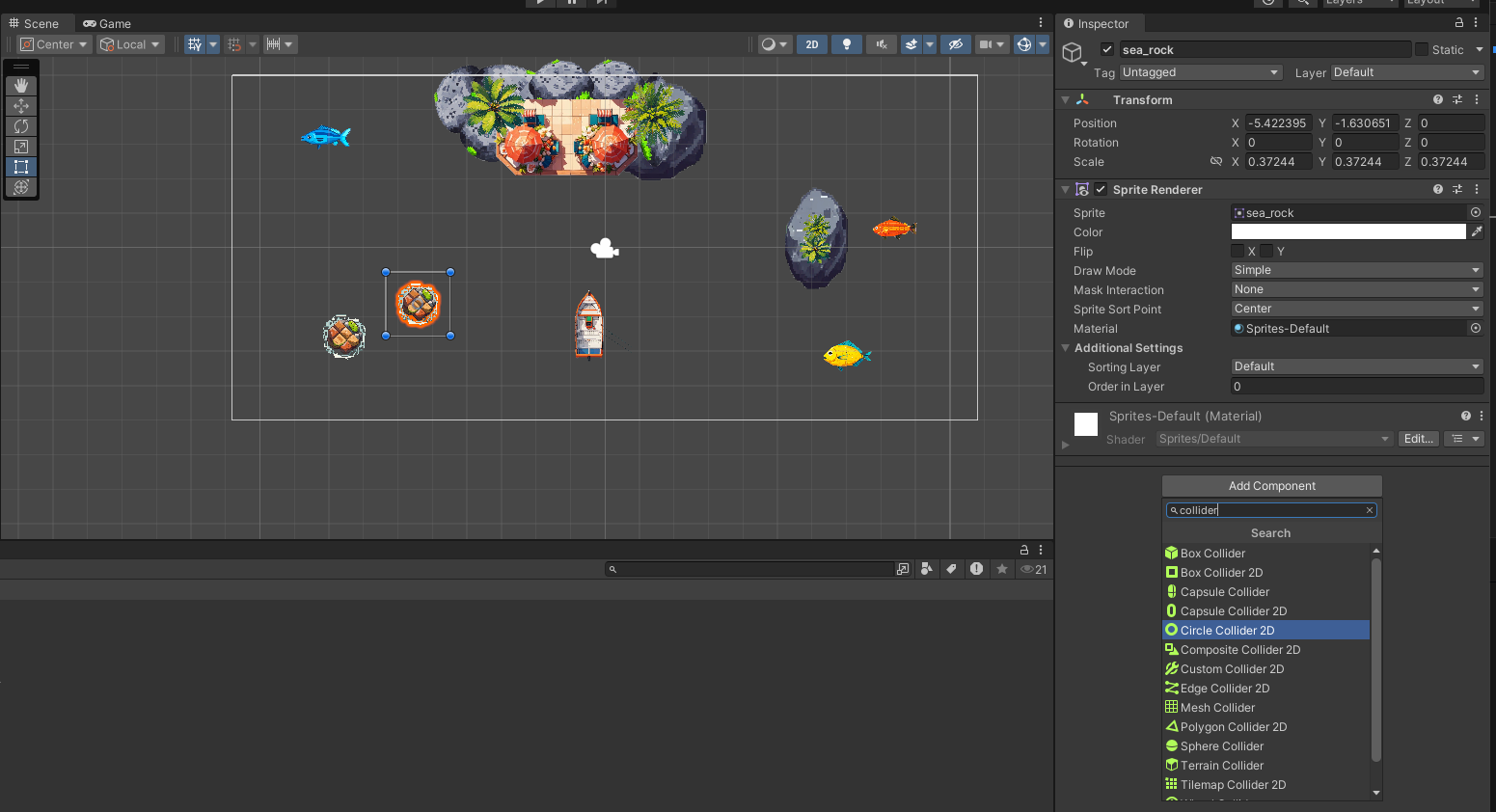
To edit a collider and fit it to an object shape, we can use Edit Collider button and then readjust the edges to the correct shape.

Now, we can proceed and add colliders to the remaining game objects. In all cases we’ll use 2D type colliders:
- restaurant uses Box Collider 2D
- boat uses Box Collider 2D
- small islands and circular rocks uses Circle Collider 2D
- fishes and stretched island uses Polygon Collider 2D

Once you added all colliders to the game objects and run the game again, you won’t see any difference and our fishing boat will still be able to overlap the environment objects. To make collision happens, at least one object has to have Rigid Body component.
Rigid Body
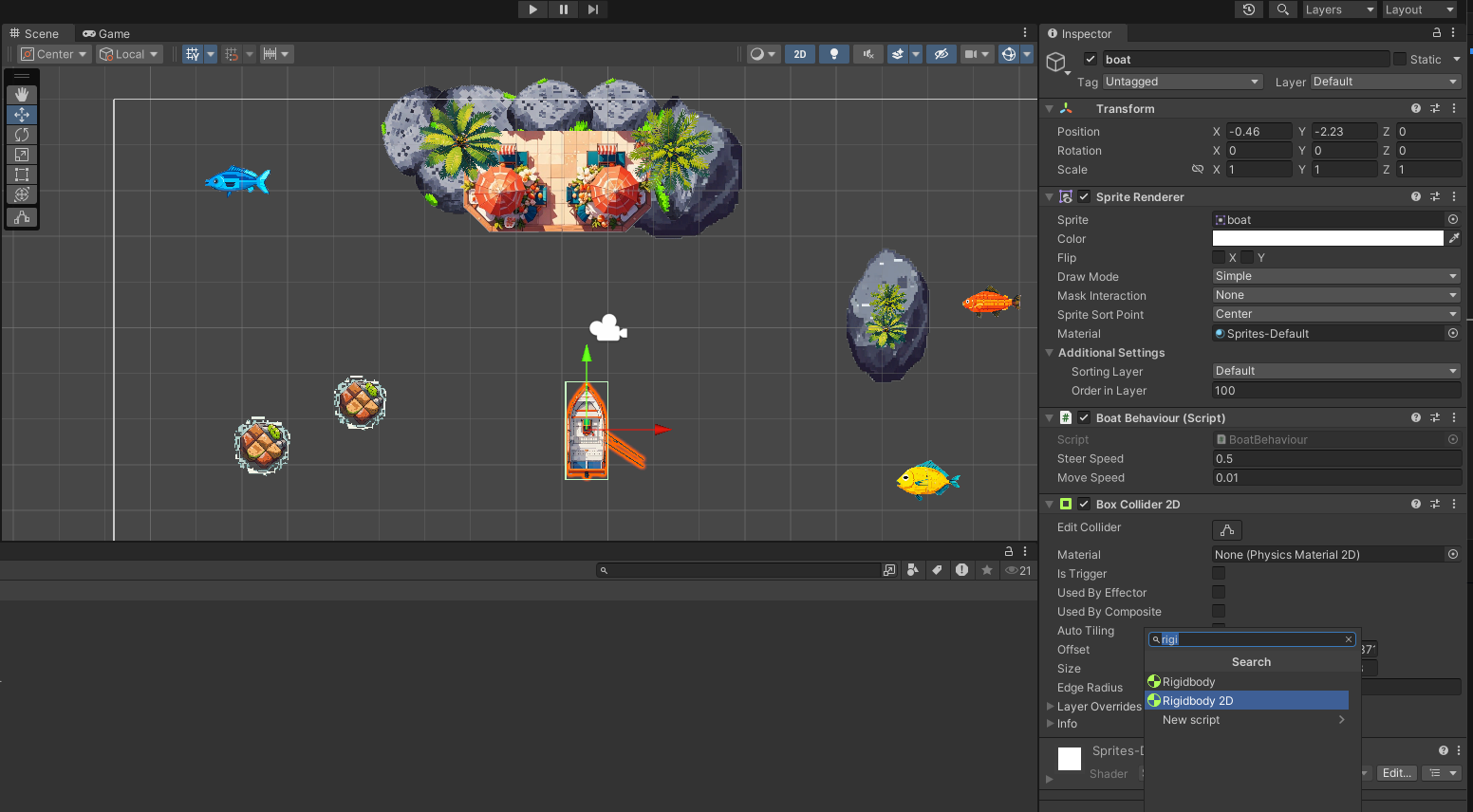
In the same way we added colliders, we are going to add Rigid Body 2D component to our boat. To do that, select boat and in properties panel go to Add Component. Search for Rigid Body 2D and then add it.
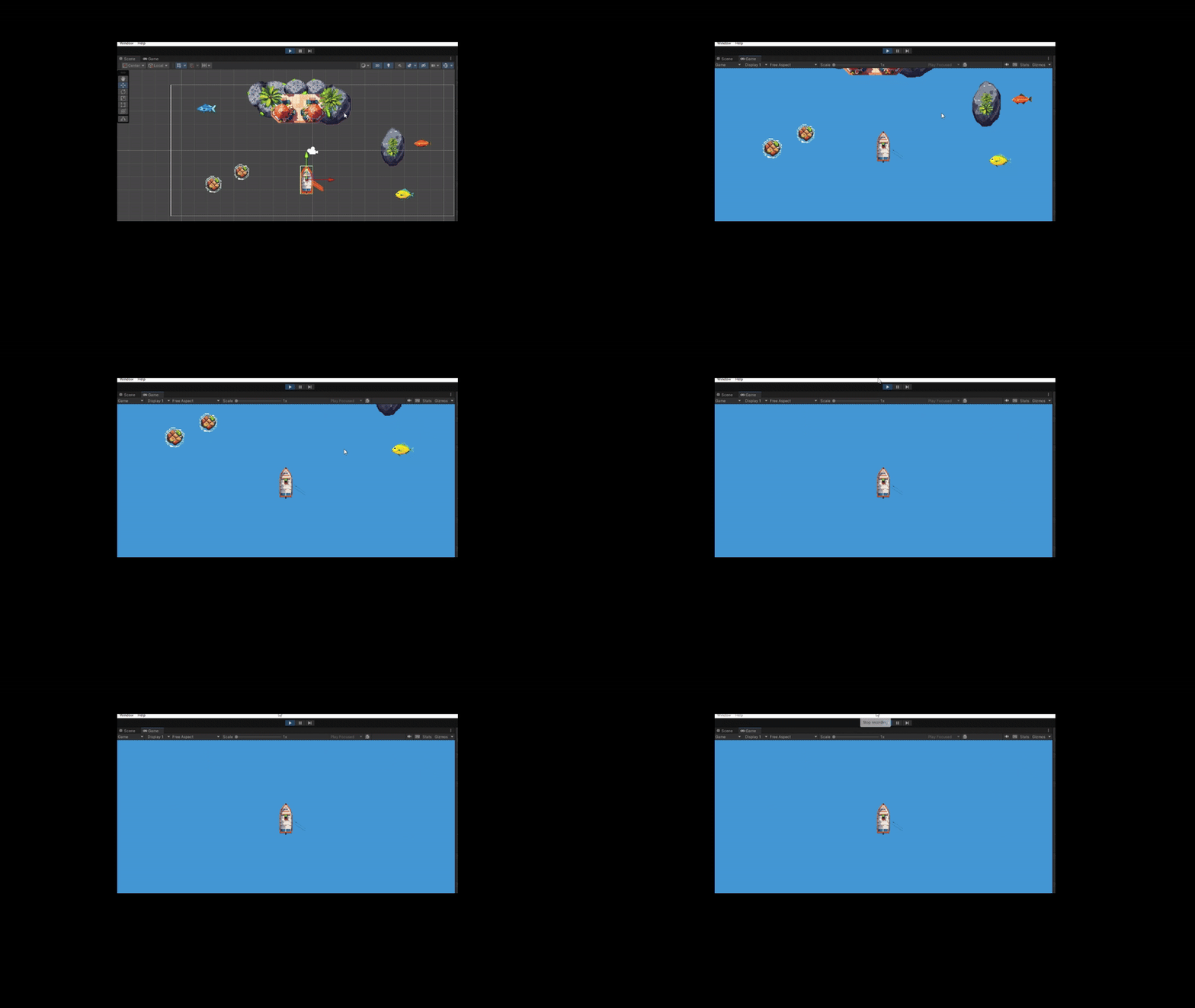
If you run the game again you’ll experience that your boat falls of the screen without you controlling it.
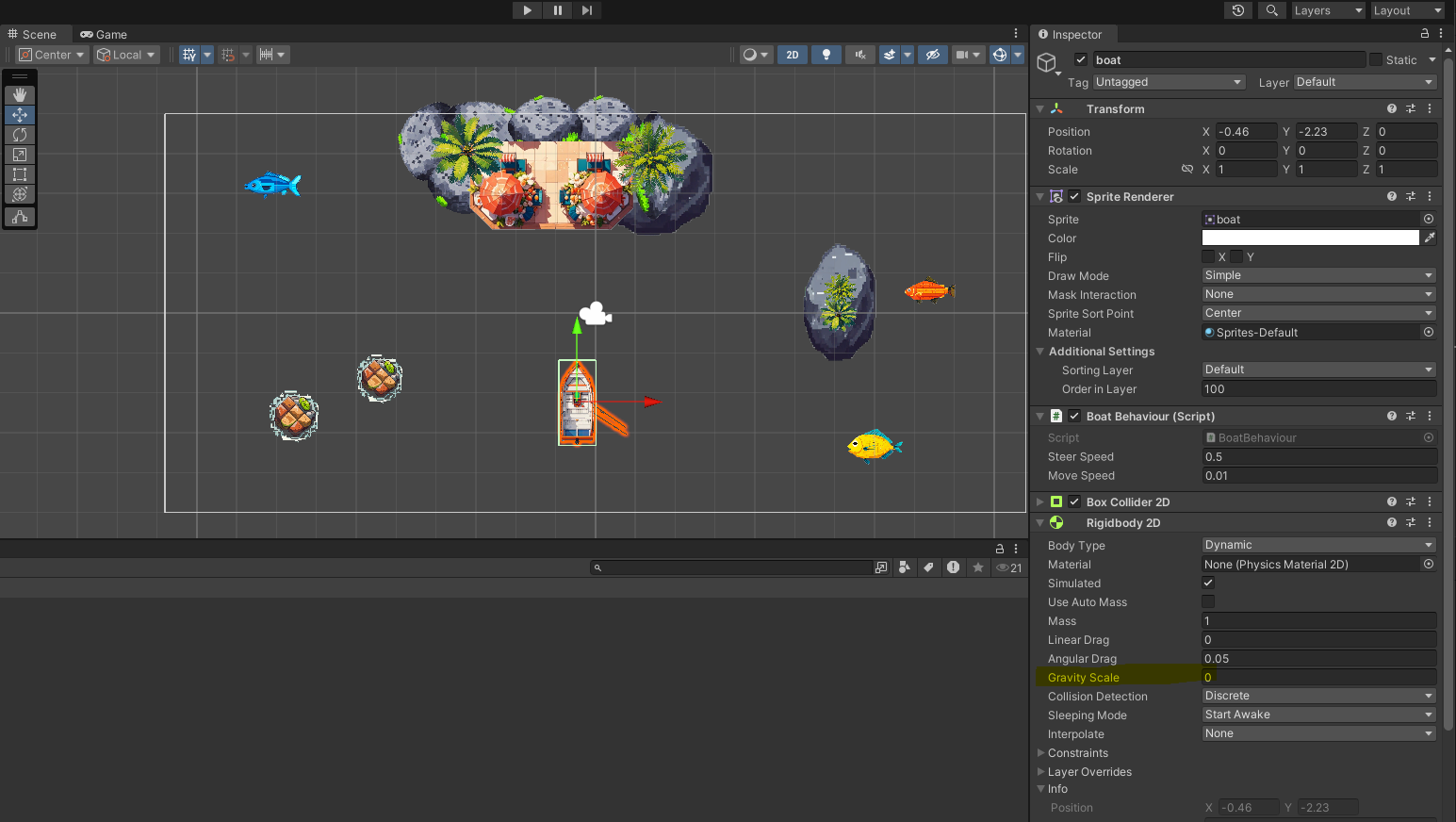
The issue is that Rigid Body 2D by default has a gravity assigned to it and therefor falls down. In our case, the game is set to up-down perspective and we have no need for gravity behavior. To turn it off, simply set Rigid Body 2D property called Gravity Scale to 0.
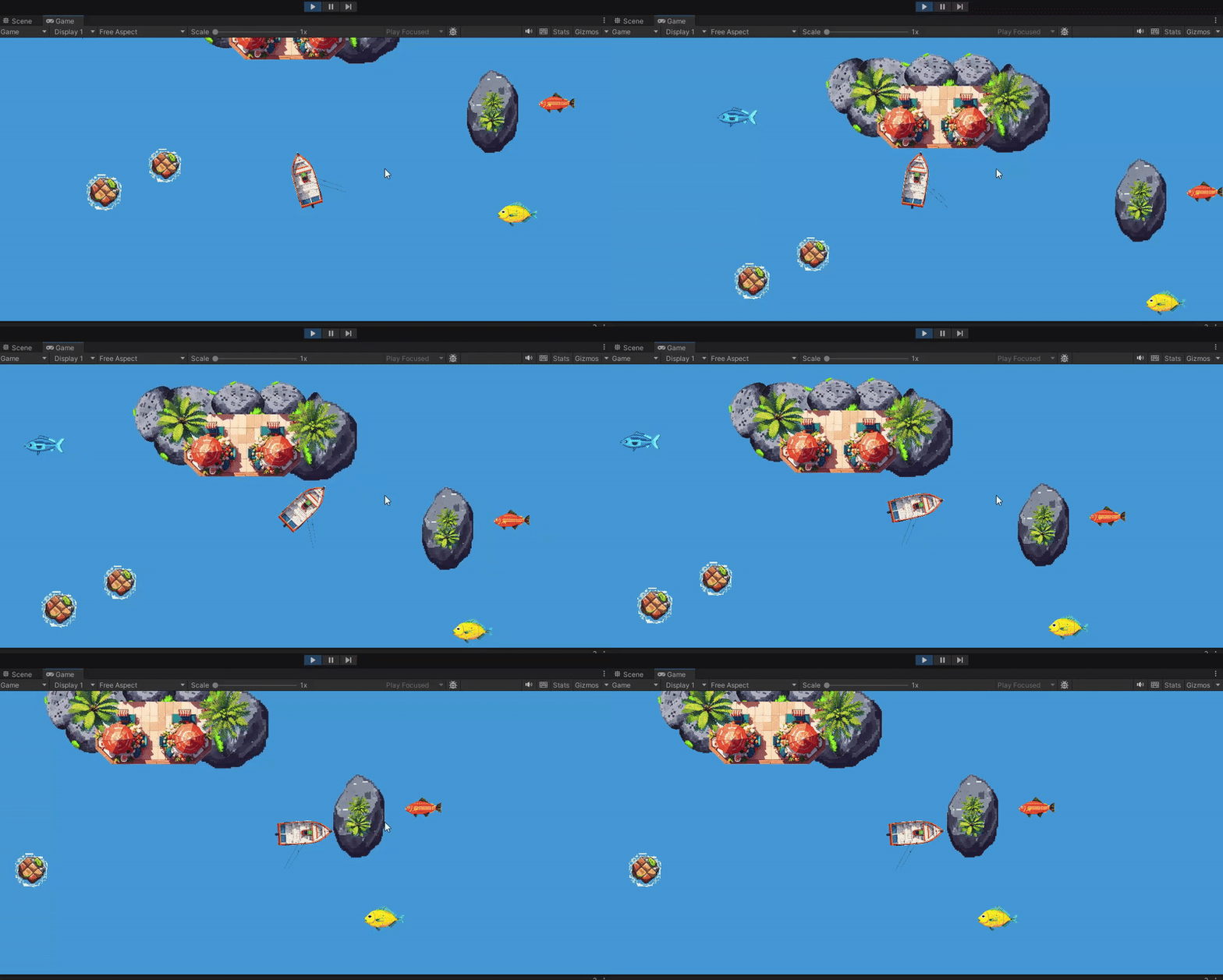
Once we correct the mistake, we can go ahead and try running a game again, where we should see an effect of our fishing boat bouncing of the environment objects.
Collider triggers and Tags
What we want to achieve, now, is to simulate catching fish. To do that we can use collision detection between the boat and the fish, so when collision happens the fish disappears and boat’s fish count increases by one. In other case, every time boat collides with the restaurant the boat’s fish count is reset to zero, simulating the fish delivery.
In order to detect collisions, each fish and restaurant object has to have IsTrigger property set to true.
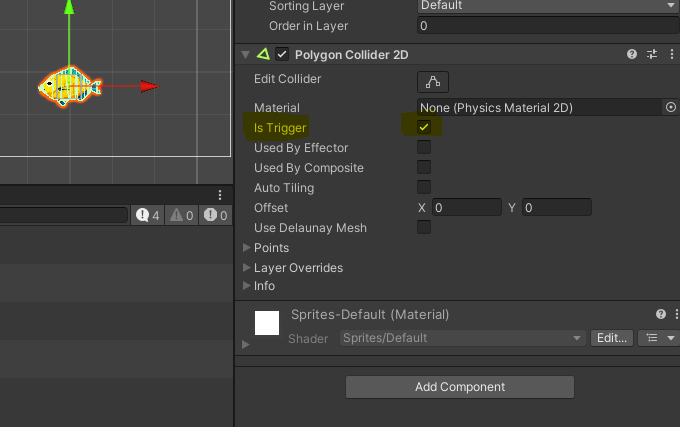
Once we have checked this property for all fishes and the restaurant, we need to add corresponding Tags. Tags will provide a way for us to distinguish between object types we collide with: restaurant or fish. To add a tag, go to Add Tag… and add two tags: ‘Restuarant’ and ‘Fish’.
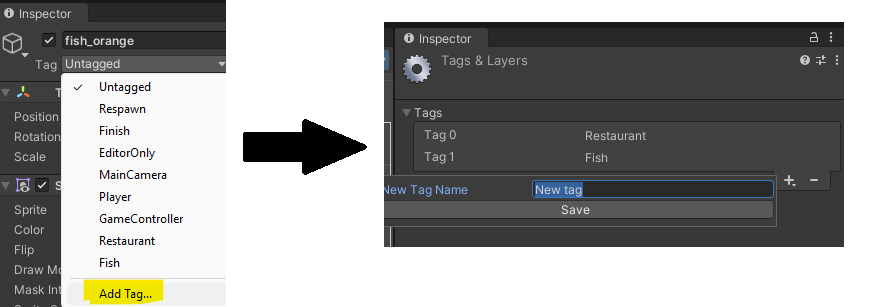
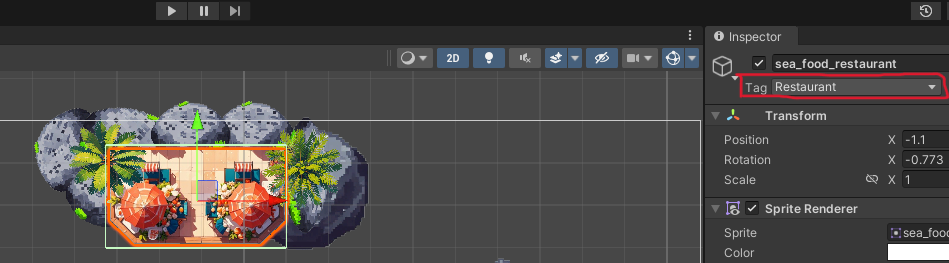
Once you have added the tags, set ‘Fish’ tag to all fish objects and set ‘Restaurant’ tag to the restaurant object.
Fishing behavior
For detecting and handling collisions, we’ll add a new C# script file titled CatchFishBehaviour.
using System.Collections;
using System.Collections.Generic;
using UnityEngine;

public class CatchFishBehaviour : MonoBehaviour
{
    private int _currentFishCapacity = 0;

    [SerializeField]
    int boatMaxFishCapacity = 3;

    private void OnTriggerEnter2D(Collider2D collision)
    {
        if (collision.tag == "Fish" && !IsFishCapacityFull())
        {
            _currentFishCapacity++;
            Destroy(collision.gameObject, 0.2f);

            Debug.Log($">>> We caught a fish!");
        }
        else if (collision.tag == "Restaurant")
        {
            _currentFishCapacity = 0;

            Debug.Log($">>> Fresh fish delivered!");
        }
    }

    private bool IsFishCapacityFull()
    {
        return _currentFishCapacity == boatMaxFishCapacity;
    }
}
Once your script file is ready with the code above, assign this script to the Boat object. As usual, this can be done by simply dropping the script in the boat’s properties.
OnTriggerEnter2D is method that is invoked on each boat collision and carries information about collision between boat object with the other objects. If the collision is with an object with a tag ‘Fish’ it will follow execution wrapped in {} below if statement. However, if the boat collides with the restaurant, the else if condition will be satisfied and therefor underlying section will be executed.
Besides this method, we also see second method IsFishCapacityFull. This method checks if the boat’s fish capacity (i.e. how much fish can it carry) is full or not. This is done by comparing the _currentFishCapacity which is initially 0, with boatMaxFishCapacity which represents maximum carriage and it’s value can be changed in properties (see that [SerializeField] is being used).
Fish collision
Fish collision is handled in wrapped statement under if (collision.tag == "Fish" && !IsFishCapacityFull()) condition. Whenever the collision is with ‘Fish’ tag object and the boat doesn’t have full capacity (! means opposite), the boat’s current capacity will be increased by one, after which the object of the collision will be destroyed - in this case a fish object.
The following code Destroy(collision.gameObject, 0.2f); destroys fish object with slight delay of 0.2 seconds. Statements like Debug.Log(...) prints the log message to the application console when the game runs.
Restaurant collision
Restaurant collision is handled in wrapped statement under else if (collision.tag == "Restaurant") condition. Whenever this collision includes the object with ‘Restaurant’ tag the boat’s capacity will reset to 0 together with the print out of the log message.
Boat capacity detection
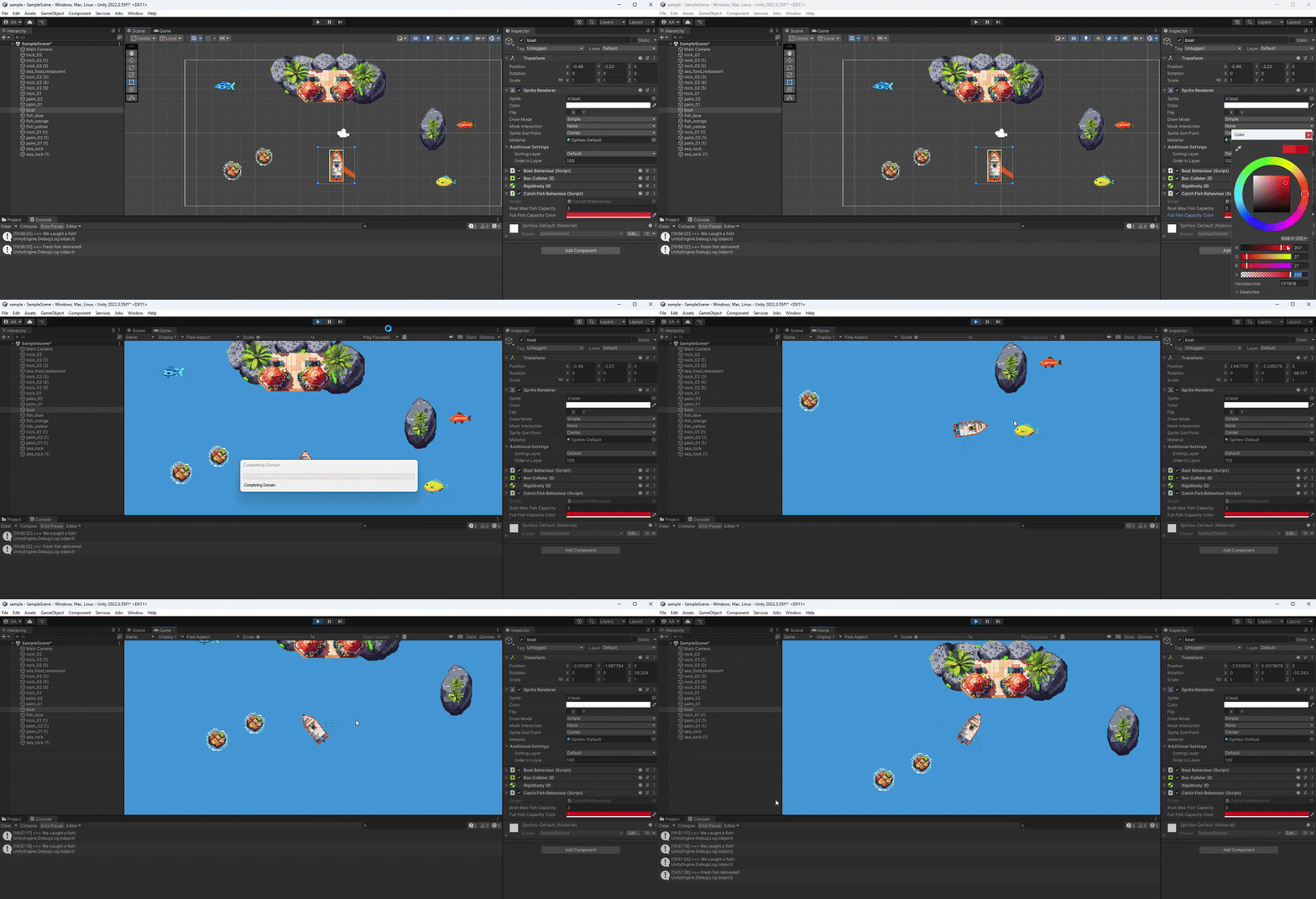
In order to somehow be able to detect that boat’s capacity is full, we can impose some display change on the boat object. The easiest approach would be to change game objects color. In our code we added a few changes to be able to change the color of the boat once the boat capacity becomes full. Also, we reset the color to initial color when the fish is delivered to the restaurant.
using System.Collections;
using System.Collections.Generic;
using UnityEngine;

public class CatchFishBehaviour : MonoBehaviour
{
    private int _currentFishCapacity = 0;
    private SpriteRenderer _renderer;
    private Color32 _emptyFishCapacityColor;

    [SerializeField]
    int boatMaxFishCapacity = 3;

    [SerializeField]
    Color32 fullFishCapacityColor = new Color32(0, 0, 0, 255);

    private void Start()
    {
        _renderer = GetComponent<SpriteRenderer>();
        _emptyFishCapacityColor = _renderer.color;
    }

    private void OnTriggerEnter2D(Collider2D collision)
    {
        if (collision.tag == "Fish" && !IsFishCapacityFull())
        {
            _currentFishCapacity++;
            Destroy(collision.gameObject, 0.2f);

            if (IsFishCapacityFull())
            {
                _renderer.color = fullFishCapacityColor;
            }

            Debug.Log($">>> We caught a fish!");
        }
        else if (collision.tag == "Restaurant")
        {
            _currentFishCapacity = 0;
            _renderer.color = _emptyFishCapacityColor;

            Debug.Log($">>> Fresh fish delivered!");
        }
    }

    private bool IsFishCapacityFull()
    {
        return _currentFishCapacity == boatMaxFishCapacity;
    }
}
Additions include adding Start() method which is convenient to use since it is invoked on a starting frame. SpriteRenderer component is fetched to be later used in the code for changing color, also the initial color of boat object is set.
Inside Fish collision section we have changes - in case that IsFishCapacityFull() condition is satisfied then the render color is being replaced. This will have effect on the boat’s displayed color which can be also set in the script properties.
In case of Restaurant collision, the renderer’s color is set back to the initial color (that we previously set at the Start method).
Conclusion
In this post, we have added a fishing behavior to the boat object with the additional script. Also, we learned how to set up colliders to trigger an event on collision and how to add tags to game objects. We now know how to use OnTriggerEnter2D to handle collision events and SpriteRenderer to change object’s display.